Configure models
This guide assumes you started the Web UI through the root README.
Choose default models
At the top of Settings → Models, choose Default model for new chats. It saves immediately after the Host acknowledges the change. Existing chats keep their selected model. A missing model stays marked unavailable until you replace it. Image-only and video-only models are excluded.
Image model and Video model follow the chat default and keep their Apply/Discard controls. Decision model appears below them. Enable the Jev group in Plugins to use Off / Jev; Configure Jev opens its write-only API-key editor. Off stops new advisory browser_decide calls without deleting the key or interrupting an active request. Jev chooses among supplied actions; the ordinary browser tools still execute actions under Hydra permissions.
Configure DeepSeek
Open Settings → Models. The DeepSeek card exposes one API-key field; enter the key and save it.
To remove the shipped DeepSeek row, choose Delete. The adapter stays in the composition; choose Add provider and select DeepSeek if you want the row back. First-run setup will not recreate it while that choice is stored.
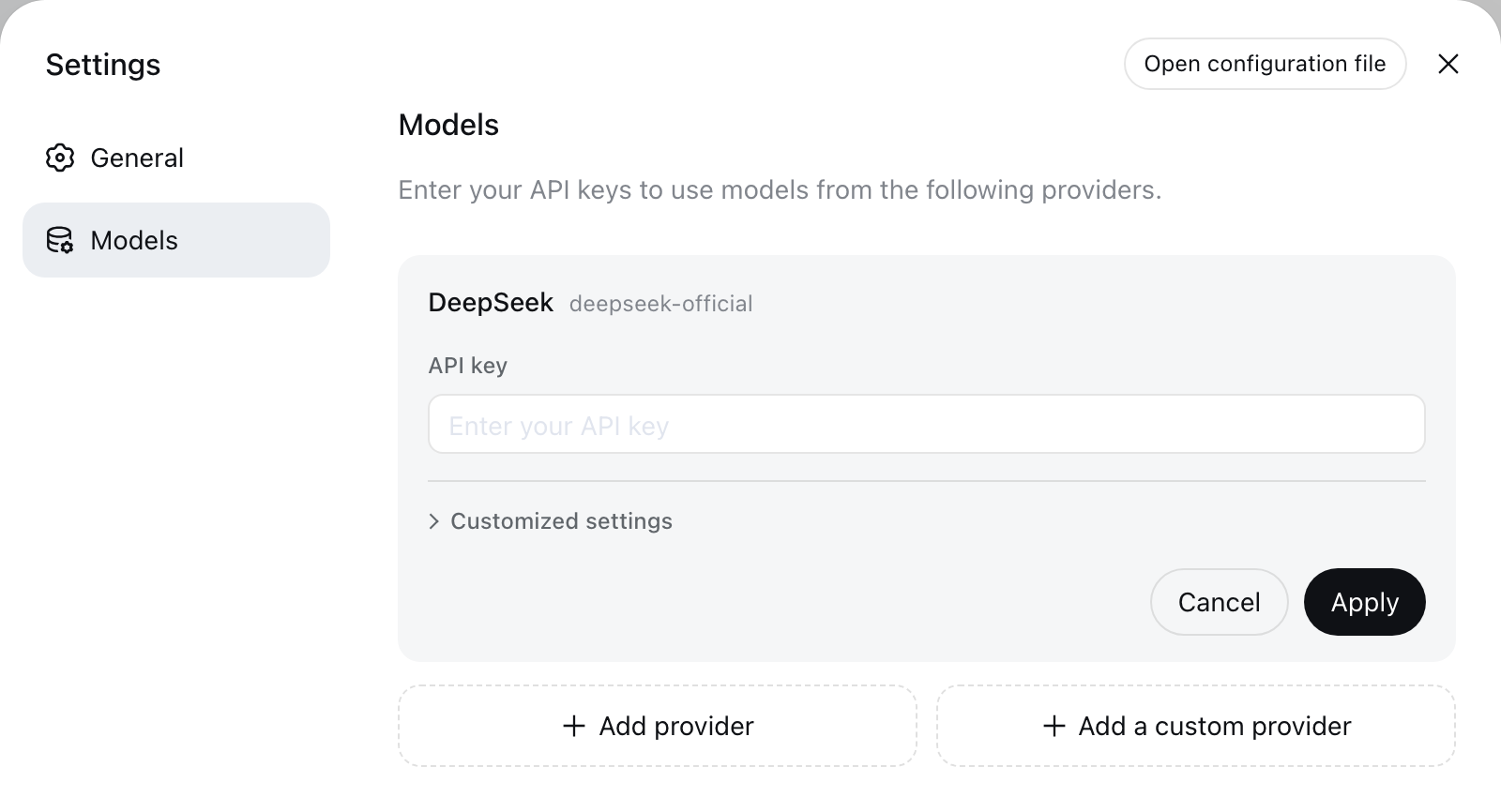
Keys are write-only. The page receives a redacted descriptor after saving, never the literal secret. The key is stored in $HYDRA_HOME/.credentials.yaml, while settings retain only its credential reference.
Add a catalog provider
Choose Add provider, select a provider such as Anthropic or OpenAI, enter its API key, and save. The installed catalog supplies the endpoint, protocol, and model list.
Providers with native authentication need their native credentials instead. Bedrock, Vertex, Azure, and Codex use AWS credentials and a region, an ADC project, an api-version, and OAuth respectively; filling only the API-key field does not configure them.
Connect provider accounts
Open Settings → Accounts, choose a provider, and complete its sign-in flow. Accounts are saved immediately; adding an account does not enable or configure a provider. Google groups Antigravity and Gemini API with separate sign-in methods. The Gemini API OAuth method requires a Cloud quota project; its API quota and billing are separate from a Google AI subscription.
Use Manage models to open Models and add or edit the provider under Account-backed models. Models retains provider catalogs, API keys, fallback keys, and default models. Manage accounts returns to Accounts. Deleting a provider in Models keeps its accounts; removing accounts leaves its model configuration intact.
Accounts shows the plan, quota, reset times, and credits supplied by the provider. One account opens its details automatically; larger pools load only the expanded account. Missing data stays unavailable. Refresh requests a current report without changing your limits.
Import Gemini Web cookies
This flow requires Windows Desktop or Web localhost with the Gemini Web provider enabled, plus an Edge or Chrome profile already signed in to the Google account you want to use. Connect remains available for signing in through Hydra's separate browser.
- In that Edge or Chrome profile, install Cookie-Editor using the store link on its official website.
- Open Gemini, confirm the intended account, and keep that tab active. Open Cookie-Editor from the browser toolbar; allow access to the site if prompted.
- Choose Export → JSON. The extension copies the cookies for the active tab to your clipboard. If Export uses a previously selected format, choose JSON in Cookie-Editor's export-format settings. Keep the complete array, including domain, expiry, security and HttpOnly metadata. Do not copy individual cookie values.
- In Hydra, open Settings → Accounts and select Gemini Web. Select Import Cookies under Sign-in method, then click Import Cookies.
- Paste the clipboard contents into Gemini cookies JSON. Alternatively, paste them into a local text editor, save as
cookies.json, and select that file under Cookies JSON file. Exports must be no larger than 64 KiB. - Choose Continue and wait for Account connected. Configure or enable this provider in Models. The account is saved immediately; use Manage models to configure its provider if needed. Hydra checks the session over HTTP before saving; a failed import keeps the existing session.
Cookies can grant access to your Google account. Paste them only into Hydra, keep exported files private, and do not include them in chats, screenshots or issue reports. Console document.cookie omits HttpOnly cookies; copied Cookie headers and Netscape exports are not accepted. Chrome's cookie documentation describes these metadata fields.
If the export lacks an unexpired __Secure-1PSID, sign in again and repeat the export from the active Gemini tab. If Hydra reports partitioned cookies, use Connect through its separate browser. To import a different account, use Remove first. A successful import does not prove remaining image or video quota. The Gemini Web reference owns accepted formats and account restrictions.
Add a custom provider
Choose Add a custom provider for a company gateway, self-hosted server, or provider absent from the installed catalog. Supply a lowercase Provider ID, base URL, API protocol, credential, and at least one model.
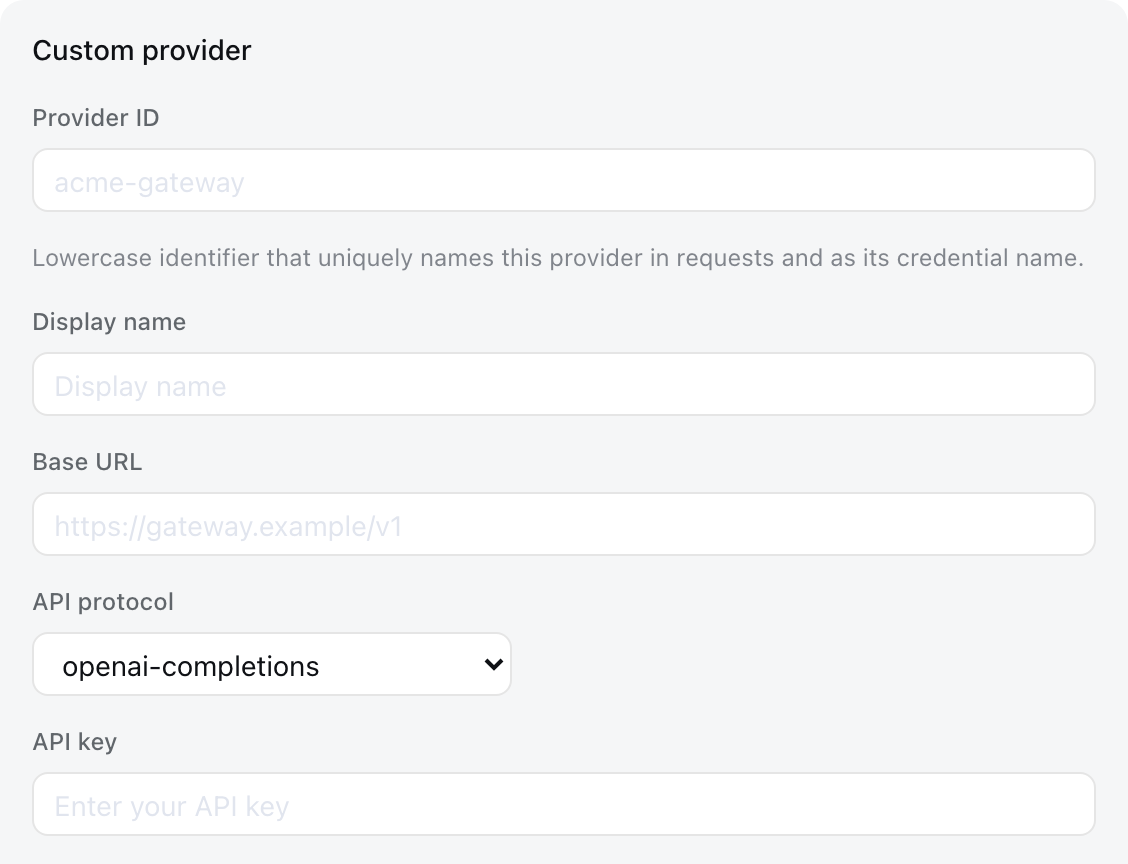
The Provider ID is permanent because requests, saved sessions, model defaults, and credential references use it. To rename a provider, add a new provider and delete the old one. The display name, base URL, protocol, credential, and models remain editable.
Under Model catalog, choose Fetch available models to query the base URL and credential currently shown in the form. Selecting candidates updates the draft; the provider is not stored until you save. Catalog providers use their installed catalog without a network request.
Route traffic through an HTTP(S) proxy
Open Customized settings and set Proxy when a provider must reach its endpoint through a forwarding proxy. Leave it blank to connect directly to the endpoint. This field is available on catalog and custom providers, accepts http: or https: URLs, and affects only that provider route. It also applies to Fetch available models when the form calls an endpoint.
llm-pi-ai:
  providers:
    my-gateway:
      proxy: http://127.0.0.1:3128
For the built-in DeepSeek route, set proxy under llm-deepseek instead. The setting is route-scoped, so it does not redirect another provider or change the application-wide proxy environment.
Image input
A model you enter by hand is treated as text-only until it says otherwise, because nothing can ask an endpoint which modalities it accepts. Attaching an image to such a model is refused before it is sent, naming the model.
A vision model on a custom provider therefore needs one line. The form has no field for it; add input to the model in $HYDRA_HOME/settings.yaml:
llm-pi-ai:
  providers:
    my-gateway:
      apiKeyEnv: GATEWAY_API_KEY
      api: openai-completions
      baseURL: https://gateway.example/v1
      models:
        - id: legacy-chat
        - id: vision-preview
          input: [text, image]
input accepts text and image, and applies to that model alone, so one route can serve both kinds. Omitting it — or writing an empty list, which means the same thing — keeps whatever the installed catalog records for that model, and falls back to the route's defaultInput for a model the catalog does not describe.
If every model you entered by hand takes images, set the fallback once on the route instead of on each of them:
llm-pi-ai:
  providers:
    vision-gateway:
      apiKeyEnv: GATEWAY_API_KEY
      api: openai-completions
      baseURL: https://vision.example/v1
      defaultInput: [text, image]
      models:
        - id: first-model
        - id: second-model
defaultInput is a fallback, not an override, and defaults to [text]: on a catalog provider it answers only for models the catalog does not describe, so it never removes images from a catalog model that has them. Narrow one of those with that model's own input. A catalog provider has no models list to put it in, so write it under modelOverrides, keyed by model id:
llm-pi-ai:
  providers:
    anthropic:
      modelOverrides:
        claude-sonnet-4-5:
          input: [text]
Every list must name at least one modality except a model's own, where an empty list means the same as omitting it. An unknown modality is refused wherever it is written.
Both fields state a claim about your endpoint rather than checking it. A model that declares images its endpoint does not serve is not caught here; the provider rejects the request instead.
Request compatibility
A gateway can hold a working key at a reachable address and still refuse every request. pi-ai decides the shape of a request — which role carries the system prompt, which field caps the output, how a thinking level travels — from the endpoint's URL, and an address it does not recognize is addressed as though it were OpenAI itself. Most OpenAI-compatible gateways refuse at least one thing OpenAI accepts.
Two account for most of it. A model that declares reasoning has its system prompt sent as role: "developer", which many gateways reject outright, and the output cap is sent as max_completion_tokens, which a server that only knows max_tokens refuses. The form has no field for either; correct them on the route in $HYDRA_HOME/settings.yaml:
llm-pi-ai:
  providers:
    my-gateway:
      apiKeyEnv: GATEWAY_API_KEY
      api: openai-completions
      baseURL: https://gateway.example/v1
      compat:
        supportsDeveloperRole: false
        maxTokensField: max_tokens
      models:
        - id: my-model
A route's compat is the default for its models, and a model's own wins field by field, so one model can be corrected without restating the route:
      models:
        - id: my-model
        - id: my-reasoner
          compat:
            thinkingFormat: deepseek
What neither sets keeps the installed catalog's value for that model, and what the catalog does not describe falls to pi-ai's detection. Give every switch you name a value: a key left empty (supportsDeveloperRole:) is refused rather than ignored, because an empty value would erase what the catalog knows while saying nothing in its place. A name no protocol accepts is refused too, and the message lists the ones that are available.
Each switch belongs to the protocols that declare it, so a switch valid on one api may be refused on another — the message names what that protocol does offer. Like input above, a switch states a claim about your endpoint rather than checking it: setting one your gateway does not actually need simply sends a different request.
Every switch, its accepted values, and the protocols that take it are listed under PiAiCompatProfile in the generated @hydraharness/harness-llm-pi-ai configuration reference — which is derived from the source, so it cannot fall behind what the adapter accepts.
Select a model
Configured providers appear in the model picker. Selecting a model also makes it the default for new sessions. A session that has already sent a request retains the model recorded in its own log.
If a saved default names a provider that was deleted, the composer displays Select model and blocks input until another model is selected.
Troubleshooting
MISSING_CREDENTIAL— Store the provider key through the Models page or supply the referenced environment variable.UNKNOWN_MODEL— Select a configured model or add the missing model to the custom provider.- Fetching available models returns 401 — Check the key. Model discovery calls the OpenAI-compatible
GET /modelsendpoint; enter models manually for endpoints that do not provide it. - The gateway refuses every request although the key and URL are right — Its request shape differs from OpenAI's. Start with
compat.supportsDeveloperRole: falseandcompat.maxTokensField: max_tokenson the route. - Only reasoning models fail — pi-ai sends their system prompt as the
developerrole, which the gateway rejects. Setcompat.supportsDeveloperRole: false. - A compat switch is refused as having no value — A key written with nothing after the colon. Give it a value, or remove the key to keep the installed catalog's.
- An image is refused before sending — The model declares no image modality. Give a custom provider's model
input: [text, image]; DeepSeek's own chat-completions route is text-only and cannot be configured otherwise. - The provider rejects a request carrying an image — The model declares images its endpoint does not actually serve. Remove
imagefrom whichever list granted it — the model'sinput, or the route'sdefaultInput— then start a new session: the attached image stays in the session log, so the same request repeats until the session moves off it.
Advanced configuration
The generated plugin configuration catalog lists every supported field and default for every plugin; @hydraharness/harness-llm-pi-ai is the provider section this page configures. The @hydraharness/harness-llm-pi-ai and @hydraharness/harness-llm-deepseek references own direct settings.yaml configuration, catalog resolution, reasoning controls, credentials, and adapter errors.